How to Convert HEIC to JPG — The Complete Guide for iPhone Users
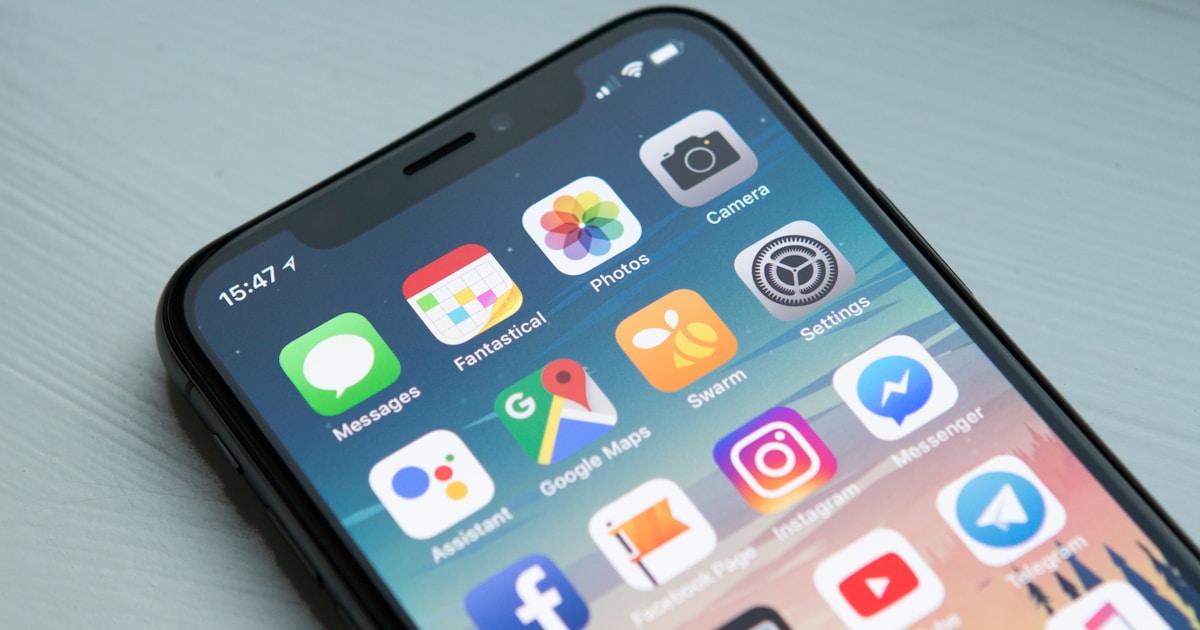
If you have ever transferred photos from your iPhone to a Windows PC, you have probably encountered .HEIC files that will not open. This guide explains what HEIC is, why Apple uses it, and how to convert HEIC to JPG instantly.
What Is HEIC Format?
HEIC (High Efficiency Image Container) is Apple's default photo format since iOS 11 (2017). It uses the HEIF standard, which compresses images 50% more efficiently than JPEG while maintaining the same visual quality.
Why Apple uses HEIC:
- Photos take up half the storage space compared to JPEG
- Supports 16-bit color depth (JPEG only supports 8-bit)
- Can store multiple images in one file (Live Photos, burst shots)
- Supports transparency (like PNG)
The Problem with HEIC
Despite being technically superior, HEIC has compatibility issues:
- Windows — does not natively open HEIC (requires a codec from Microsoft Store)
- Older Android phones — cannot display HEIC files
- Many websites — do not accept HEIC uploads
- Social media — some platforms reject HEIC format
- Email — recipients may not be able to open HEIC attachments
The simplest solution? Convert HEIC to JPG — it takes seconds and works everywhere.
How to Convert HEIC to JPG Online (Free)
- Go to the HEIC to JPG Converter
- Drop your HEIC files into the upload area
- Choose quality level (90% recommended for best results)
- Click Convert and download your JPG files
Everything happens in your browser — your photos are never uploaded to any server.
How to Stop iPhone from Taking HEIC Photos
If you want your iPhone to save photos as JPG instead of HEIC:
- Open Settings
- Go to Camera
- Tap Formats
- Select Most Compatible (this switches to JPEG)
Note: This will use more storage space since JPEG files are larger than HEIC.
HEIC vs JPG: Which Is Better?
- For iPhones and Apple devices — keep HEIC (saves storage)
- For sharing and web — convert to JPG (universal compatibility)
- For printing — convert to JPG (print shops prefer it)
- For editing — convert to JPG or PNG (better software support)
Convert HEIC to JPG Instantly
Free, private, browser-based. No app installation needed.
Convert HEIC to JPGHow iCloud Photos changes the HEIC-to-JPG game
One thing most HEIC guides miss: if you use iCloud Photos and share photos to non-Apple devices, the conversion is sometimes handled automatically — and sometimes catastrophically broken. When you AirDrop or share a photo to another Apple device, the original HEIC goes through. When you download a photo from iCloud.com on a Windows PC, you usually get JPG. When you email a photo from your iPhone to a non-Apple recipient, the iPhone usually converts on the way out (if "Send as Compatible" is on). When you upload a photo to a website from your iPhone, it depends on the browser and the site.
This inconsistency is why HEIC-to-JPG converters exist as a category. You can't rely on the system to always do the right thing, so you handle it yourself. To shortcut this entirely, change your iPhone camera setting: Settings → Camera → Formats → Most Compatible. This makes new photos save as JPG directly. You lose the storage efficiency of HEIC, but you skip every compatibility headache forever.
Batch converting hundreds of HEIC files efficiently
For a handful of photos, web converters like this one are perfect. For converting an entire library — say, 10 years of family photos that all need to be exported as JPG for a backup or archive — batch tools are faster.
On Mac: Open Photos, select photos, File → Export → Export Photos. Choose JPG, click Export. Mac handles thousands of photos in one batch.
On Windows: Install the free Apple iCloud for Windows app, sync your photos, then they'll download as JPG automatically. Alternatively, use a batch tool like XnConvert (free, cross-platform) which handles HEIC input natively.
Command line: The heif-convert tool (part of libheif) can convert thousands of HEICs in one command via a simple shell loop that iterates each .heic file and writes a .jpg next to it. Useful for archival exports of large libraries on a Linux server.
For occasional conversion of a few photos, the browser-based tool you're on right now is the simplest path. For ongoing large-scale conversion, install a batch tool.
When you might want to keep HEIC instead
The whole point of HEIC is its efficiency — it's roughly half the size of JPG at similar visual quality. If your photos will stay within the Apple ecosystem (iCloud Photos, AirDrop to other Apple devices, iMessage to other iPhones), there's a genuine case for keeping them as HEIC:
- Phone storage. HEIC saves enough space that you can fit roughly twice as many photos on the same device.
- iCloud storage. Same savings apply to your cloud quota. For iCloud users on a 200GB or larger plan, this can mean the difference between needing the next tier up or not.
- Quality preservation. HEIC handles smooth gradients and low-light scenes slightly better than JPG at the same file size.
The pragmatic strategy: keep HEIC as your default format, convert to JPG only when sharing with non-Apple devices or uploading to services that need it.
Privacy considerations when converting HEIC photos
An overlooked angle: HEIC files preserve all the EXIF metadata your iPhone embeds — including the GPS coordinates of where each photo was taken. When you convert to JPG, that metadata typically comes with the photo unless you explicitly strip it.
This matters if you're converting photos for public sharing. A photo of your living room with the GPS metadata intact tells anyone who downloads it exactly where your home is. Before posting converted JPGs to public forums, dating apps, marketplaces, or social media, run them through an EXIF remover.
Most social platforms (Instagram, Facebook, Twitter/X) strip EXIF automatically on upload. But sharing photos via email, in private group chats, on websites with public URLs, or anywhere else preserves the data. The safe assumption: any photo you didn't personally strip might still have GPS data attached.